
Google Analytics helps you understand how many people are visiting your website and gives you valuable insights into your customers. If you’re looking for tips on boosting your website traffic, check out our Rocketspark guide to search engine optimisation — it’s packed with helpful ideas.
If you already have a Google Analytics account, please follow this separate guide: How to connect an existing Google Analytics account
You can further connect your Google Analytics account to your dashboard to see your data directly through Rocketspark. This connection will give you a visual graph and user-friendly statistics for your website performance!
Rocketspark makes setting up Google Analytics very easy. There are 3 main setup steps:
- Set up your own Google Analytics account
- Add your Google Analytics code (GA4) to Rocketspark
- Connect a Google Analytics Graph to your dashboard
Analytics walk-through - Click "Get Started"
(To make this tour bigger, click the arrows on the right or zoom in)
Step 1: Create a Google Analytics Account:
- Log in to Google Analytics.
- Click on Sign in, or if you are already signed in, click Access Google Analytics
- If you don’t already have a Google account click Sign up. If you already have a Google account go to step 6.
- Enter your details in the Google Accounts form to create your Google Account.
- You will be sent an email by Google to verify that your email address is correct.
- Click on the link provided by Google to verify your account. Be sure to check your junk mail/spam folders if you can’t find the email from Google.
- Sign in to your Google Account.
- Click the Signup button to set up Google Analytics.
- First, select that you would like to track a website, select Classic Analytics, then enter the details of your Rocketspark website & Industry Category and click continue.
Website Name = The name of your business or organisation
Website URL = Your website address e.g. www.yourcompany.co.nz
- Pick your country for the terms of the user agreement, read the Terms of Service, tick the box and click Create Account.
- Your page will now look like the image below. You will need to set up a data stream, to do this you will want to select web.
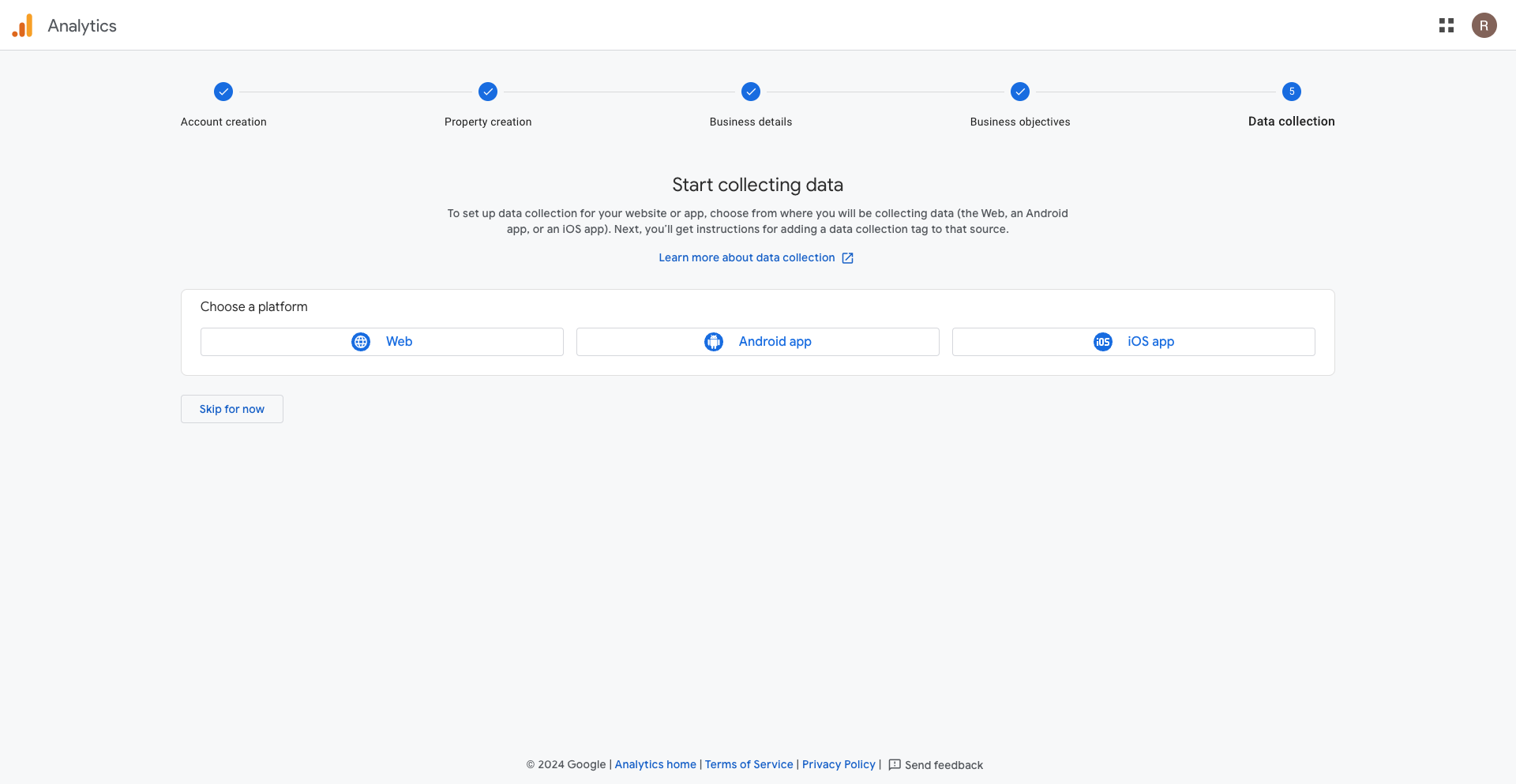
- You can then enter your website domain name (including the www.) and the name of your website, you can then click Create Stream.
- This will now look like the page below, this contains your measurement ID number which you will need to copy for the next step.
Step 2: Add your Google Analytics code (GA4) to Rocketspark
- Log in to your Rocketspark Dashboard.
-
Go to the Get Found SEO section
-
Here you will be able to paste the Google tracking code copied earlier and click save.
Step 3: Connect a Google Analytics Graph to your dashboard
- Log into your Rocketspark dashboard
- Click "Connect Google Analytics" on your dashboard (you may need to scroll)
- Choose a Google profile that you used to set up Google Analytics
Double-check within Google Analytics to see what email you use
- Click Continue
-
Important: confirm all permissions and then click "continue"
- If you do not click the tick box above, you will receive the below error. Click "Try Again" if this error occurs
- If you have multiple Google Analytics profiles within the same email, select the correct account for the website you are connecting (also double check this within Google Analytics)
Please note, that it can take up to 48 hours to start seeing new traffic on your graph if you have only just created your Google Analytics Account.
Learn how to interpret and understand the new graph on your dashboard: How to understand your Google Analytics Graph and data on Rocketspark
If you have connected the wrong Google Analytics Account or need to connect a new Account
Sometimes you may need to change your Google Analytics Account from your Rocketspark Dashboard for reasons such as you have connected the wrong account or you want to connect a new account.
Click the settings on the right-hand side of your graph
Click "Disconnect Google Analytics"
Repeat the steps above to re-connect to a new Google Analytics account.
Google Analytics has a great Learn programme, which will help you understand Google Analytics and be able to set this up yourself. To have a look into this please check out this link here.
Please contact support@rocketspark.com if you have any questions
FAQ
Why can't I see Google Analytics data?
It might be down to what frequency you've selected for viewing your data.
If you've set it to show monthly, but you're checking for yearly trends, you might not see anything. We recommend setting the frequency to daily or weekly if you'd like a glimpse of more immediate activity. But if you're tracking annual patterns, setting it to monthly is fine. This switch can make the difference in what appears on your graph.
What if I get a “No Properties Found” error when connecting?
That usually means you’re signed in with a Google account that hasn't set up a Google Analytics property yet. Follow the steps in this help guide: "No Properties Found" - How to create a Google Analytics property
Can I disconnect or re-connect Google Analytics if things don't go right ?
Yes, absolutely. Just click the settings icon on your dashboard’s graph, choose “Disconnect Google Analytics”, and then follow the connection steps again to link a different or corrected account.
If I’ve switched from Universal Analytics (UA), will it still work?
GA4 is now the only supported version and the one Rocketspark integrates with. If your site was using UA, you’ll need to set up a GA4 property to see analytics again. We have a help guide for this as well: How to update my Universal Analytics (UA) to a Google Analytics 4 (GA4) property